Welcome to my first Azure Stack blog.
Recently I have been exploring the Azure Stack POC TP1 which is available for everyone at https://azure.microsoft.com/en-us/overview/azure-stack/
So far I am very impressed, of cause always bear in mind that this is the first technical preview POC.
Today I made a small tool for helping me to have a good overview of my Azure Stack tenant VMs.
In Azure Stack the VMs are named by their GUID in Hyper-V.
This makes perfect sense, since multiple tenants could easily name their VMs the same name.
But when administrating your hyper-v host, It can be a bit hard to recognize which machine is which.
Therefore I have create a small GUI tool in PowerShell to help list the machines on a host, and to be able to trigger some basic actions.
This is the first beta and the following actions have been added:
- Connect to Console
- Stop VMs
- Start VMs
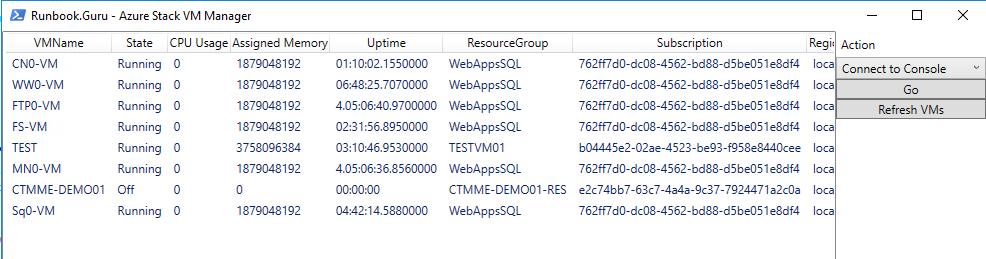
You can download the PowerShell based tool here:
https://gallery.technet.microsoft.com/Azure-Stack-VM-GUI-Beta-1-9e55aa80
Here is the current script content (the gallery item might be updated since this blog post was published):
# //*********************************************************************************************
# // Solution:
# // Author:	Jakob Gottlieb Svendsen, Coretech A/S. https://blog.ctglobalservices.com / www.runbook.guru
# // Purpose:   List Azure Stack VMs from hyper-v host in a friendly layout.
# //			Trigger actions on a number of VMs
# //            Connects to localhost by default. Please send suggestions to jgs@coretech.dk
# //
# // Usage:     MAS-VM-Admin.ps1
# //            MAS-VM-Admin.ps1 -Computer <hyper-v host"
# //
# // History:
# // 1.0.0     JGS 02/22/2016  Created initial version.
# //
# //********************************************************************************************
# //----------------------------------------------------------------------------
#//
#//  Global constant and variable declarations
#/
#//----------------------------------------------------------------------------

param($ComputerName = "localhost")

#//----------------------------------------------------------------------------
#//  Procedures
#//----------------------------------------------------------------------------

Function UpdateVMList($ComputerName)
{
    $VMInfos = @()
    $VMs = get-vm -ComputerName $ComputerName

    foreach ($VM in $VMs)
    {
        if(!$vm.Notes.StartsWith("Region:")) { continue } #Skip non MAS VMs

        $VMInfo = New-Object -TypeName PSObject
        $VMInfo | Add-Member -MemberType NoteProperty -Name Name -Value $VM.Name


        #MAS Attributes
        $NotesSplit = $VM.Notes.Split(",")
        foreach ($pair in $NotesSplit)
        {
            $pairsplit = $pair.Split(":")
            $VMInfo | Add-Member -MemberType NoteProperty -Name $pairsplit[0].Trim() -Value $pairsplit[1].Trim()
        }
        $VMInfo | Add-Member -MemberType NoteProperty -Name VM -Value $VM
        $VMInfos += $VMInfo
    }

    $ListViewMain.ItemsSource= $VMInfos

}
#//----------------------------------------------------------------------------
#//  Main routines
#//----------------------------------------------------------------------------

#Check hyper-v module installed
if(!(get-module -ListAvailable -Name "hyper-v"))
{
    throw "Hyper-V module not found. Please run this tool on a server that has the Hyper-V management tools installed"
}


Add-Type -AssemblyName PresentationFramework
Add-Type -AssemblyName PresentationCore

[XML]$MainWindow = @'
<Window
        xmlns="http://schemas.microsoft.com/winfx/2006/xaml/presentation"
        xmlns:x="http://schemas.microsoft.com/winfx/2006/xaml"
        Title="Runbook.Guru - Azure Stack VM Manager" Height="700" Width="1000">
    <Grid>
        <Grid.ColumnDefinitions>
            <ColumnDefinition Width="1000*"></ColumnDefinition>
            <ColumnDefinition Width="150"></ColumnDefinition>
        </Grid.ColumnDefinitions>
        <ListView x:Name="ListViewMain" Grid.Column="0" HorizontalAlignment="Stretch"  VerticalAlignment="Stretch" >
            <ListView.View>
                <GridView >
                    <GridViewColumn Header="VMName" DisplayMemberBinding="{Binding VMName}" />
                    <GridViewColumn Header="State" DisplayMemberBinding="{Binding VM.State}" />
                    <GridViewColumn Header="CPU Usage" DisplayMemberBinding="{Binding VM.CPUUsage}" />
                    <GridViewColumn Header="Assigned Memory" DisplayMemberBinding="{Binding VM.MemoryAssigned}" />
                    <GridViewColumn Header="Uptime" DisplayMemberBinding="{Binding VM.Uptime}" />
                    <GridViewColumn Header="ResourceGroup" DisplayMemberBinding="{Binding ResourceGroup}" />
                    <GridViewColumn Header="Subscription" DisplayMemberBinding="{Binding Subscription}" />
                    <GridViewColumn Header="Region" DisplayMemberBinding="{Binding Region}" />
                    <GridViewColumn Header="Hyper-V VM Name" DisplayMemberBinding="{Binding Name}" />
                    <!--<GridViewColumn Header="VM" DisplayMemberBinding="{Binding VM}" />-->
                </GridView>
            </ListView.View>
        </ListView>

        <StackPanel Grid.Column="1">
            <Label Name="LabelAction" Content="Action" />
            <ComboBox Name="ComboBoxAction" />
            <Button Name="ButtonGo" Content="Go" />
            <Button Name="ButtonRefresh" Content="Refresh VMs" />
        </StackPanel>
    </Grid>
</Window>
'@

$Reader = (New-Object System.XML.XMLNodeReader $MainWindow)
$Window = [Windows.Markup.XAMLReader]::Load($Reader)

$ButtonGo = $Window.FindName('ButtonGo')
#$ButtonAdd = $Window.FindName('ButtonAdd')
$ButtonRefresh = $Window.FindName('ButtonRefresh')
$ComboBoxAction = $Window.FindName('ComboBoxAction')
$ListViewMain = $Window.FindName('ListViewMain')

#Set sorting events

UpdateVMList -ComputerName $ComputerName

$Actions = @("Connect to Console","Stop VMs", "Start VMs")
$ComboBoxAction.ItemsSource = $Actions
$ComboBoxAction.SelectedIndex = 0

#Event Handlers
$Window.Add_Loaded({

 })

#Sort event handler
$Window.Add_SourceInitialized({
            [System.Windows.RoutedEventHandler]$ColumnSortHandler = {

                If ($_.OriginalSource -is [System.Windows.Controls.GridViewColumnHeader]) {

                    If ($_.OriginalSource -AND $_.OriginalSource.Role -ne 'Padding') {

                      $Column = $_.Originalsource.Column.DisplayMemberBinding.Path.Path


                      # And now we actually apply the sort to the View
                      $ListViewMain_DefaultView = [System.Windows.Data.CollectionViewSource]::GetDefaultView($ListViewMain.ItemsSource)
                    # Change the sort direction each time they sort
                            Switch($ListViewMain_DefaultView.SortDescriptions[0].Direction)
                            {
                                "Decending" { $Direction = "Ascending" }
                                "Ascending" { $Direction = "Descending" }
                                Default { $Direction = "Ascending" }
                            }
                      $ListViewMain_DefaultView.SortDescriptions.Clear()
                      $ListViewMain_DefaultView.SortDescriptions.Add((New-Object System.ComponentModel.SortDescription $Column, $Direction))
                      $ListViewMain_DefaultView.Refresh()
                }
              }


             }
             #Attach the Event Handler
             $ListViewMain.AddHandler([System.Windows.Controls.GridViewColumnHeader]::ClickEvent, $ColumnSortHandler)

        })

$ButtonGo.Add_Click({

    switch ($ComboBoxAction.SelectedValue)
    {
        "Stop VMs" {
            Stop-VMs -VM $ListViewMain.SelectedItems
        }
        "Start VMs" {
            Start-VMs -VM $ListViewMain.SelectedItems
        }
        "Connect to Console" {
             #. "$env:windir\system32\vmconnect.exe" "$computername $($ListViewMain.SelectedItem.Name)"
             Start-Process -FilePath  "$env:windir\system32\vmconnect.exe" -ArgumentList  $computername,$ListViewMain.SelectedItem.Name
        }

    }

})

$ButtonRefresh.Add_Click({
    UpdateVMList
})

#Actions
function Stop-VMs
{
    [CmdletBinding()]
    [Alias()]
    [OutputType([int])]
    Param
    (
        # Param1 help description
        [Parameter(Mandatory=$true,
                   ValueFromPipelineByPropertyName=$true,
                   Position=0)]
        [Object] $VM
    )

    Process
    {
     write-warning "Shutting down VM: $($VM.VMName) ($($VM.Name))"
     Stop-VM -Name $VM.Name
    }
}

function Start-VMs
{
    [CmdletBinding()]
    [Alias()]
    [OutputType([int])]
    Param
    (
        # Param1 help description
        [Parameter(Mandatory=$true,
                   ValueFromPipelineByPropertyName=$true,
                   Position=0)]
        [Object] $VM
    )

    Process
    {
     write-warning "Starting VM: $($VM.VMName) ($($VM.Name))"
     Start-VM -Name $VM.Name
    }
}

$Window.ShowDialog()


#//----------------------------------------------------------------------------
#//  End Script
#//----------------------------------------------------------------------------